> ## Documentation Index
> Fetch the complete documentation index at: https://guide.thatskyapplication.com/llms.txt
> Use this file to discover all available pages before exploring further.
# Welcome
> Configure welcome messages in your server!
`Manage Server`
* `Manage Server` (for disabling Discord join messages)
* `Read Message History` (for hugging)
* `Send Messages`
* `View Channel`
## Setting up welcome messages
Welcome messages are sent whenever someone joins the server. Other applications do this, but Caelus makes it Sky-themed.
Setting them up is easy. Use `/configure welcome`! Once you hit the obvious edit button, a modal will appear asking you to edit a number of things:
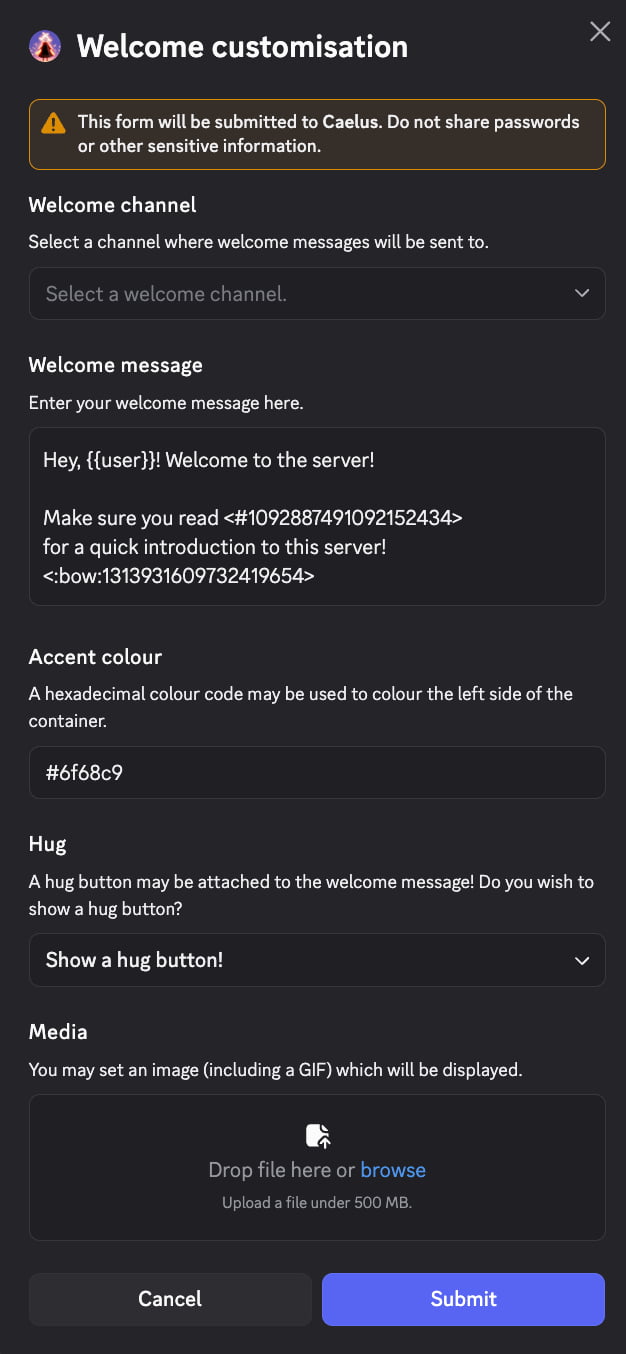 Enter your desired information, and a preview of what the welcome message will look like will be revealed to you!
### Welcome message recommendations
* `{{user}}` mentions the user who joined
* No other mentions will work, but they will appear correctly
* Mentions don't autocomplete in modals. It is recommended to type it out into a text channel and then cope & paste the contents into the modal
* Custom emojis may be used from the server & Caelus itself
### Disabling Discord join messages
You may have this enabled:
Enter your desired information, and a preview of what the welcome message will look like will be revealed to you!
### Welcome message recommendations
* `{{user}}` mentions the user who joined
* No other mentions will work, but they will appear correctly
* Mentions don't autocomplete in modals. It is recommended to type it out into a text channel and then cope & paste the contents into the modal
* Custom emojis may be used from the server & Caelus itself
### Disabling Discord join messages
You may have this enabled:
 If left enabled, both Discord and Caelus will trigger for join messages. It is recommended to **disable** the above setting to deduplicate the join messages. Caelus will offer a way to do this for you if Caelus has `Manage Server`, but if Caelus does not have it, you need someone with `Manage Server` to disable that setting.
## Examples
Here are some real examples of how they are used:
If left enabled, both Discord and Caelus will trigger for join messages. It is recommended to **disable** the above setting to deduplicate the join messages. Caelus will offer a way to do this for you if Caelus has `Manage Server`, but if Caelus does not have it, you need someone with `Manage Server` to disable that setting.
## Examples
Here are some real examples of how they are used:


